Web Build
  • Home
  • About
  • Blogging
  • Business
  • Gaming
  • Online Marketing
  • Tech News
    • Social Media
    • Facebook
    • Google
    • Microsoft
    • Reviews
    • Tips and Ideas
    • Yahoo
  • Web Design
  • Contact
  • Privacy Policy
Home  /  Google • Tips and Ideas  /  How to install android firmware without pc?

How to install android firmware without pc?

Andrew Taylor December 21, 2022 Google, Tips and Ideas Leave a Comment
How to install android firmware without pc

As a developer, you want the best for your users. The last thing you need is for them to be stuck on an old version of your app or operating system. But how do you get the latest versions of Android on all of their devices? Luckily, there are several ways to install firmware without using a computer!

Table of Contents

Toggle
  • How to install android firmware without pc?
    • Step 1. The first step is to download the latest official stock firmware zip file
    • Step 2. Now, open your phone’s Settings app and then go to System > System update.
    • Step 3: Go to the Local Update section and then tap on Select Package option.
    • Step 4. Now, choose the OTA firmware zip file you downloaded in the first step and tap on OK button.
    • Step 5. Once you select the firmware zip file, it will show a confirmation popup window. Tap on Yes button and then your phone will begin installing the official firmware update.
    • Step 6. Once the installation is complete, your device will automatically boot into the new system version.
  • Conclusion

How to install android firmware without pc?

If you’d like to install Android firmware without a PC, there are a few ways you can do so.

Step 1. The first step is to download the latest official stock firmware zip file

The first step is to download the latest official stock firmware zip file. You can either download it from Google or your phone manufacturer’s website.

Step 2. Now, open your phone’s Settings app and then go to System > System update.

Once you’re in the system update screen, make sure Local Update is selected and then choose the zip file you downloaded from the previous step. This will begin to install your firmware update on your device.

Step 3: Go to the Local Update section and then tap on Select Package option.

Now, you must go to the Local Update section and tap on Select Package option. After that, select the file you downloaded in step 1. Now, at last confirm whether you want to install it or not. If yes then confirm your selection by tapping Install button and wait until it gets installed on your Android device. Now reboot your device now!

Step 4. Now, choose the OTA firmware zip file you downloaded in the first step and tap on OK button.

Now, choose the OTA firmware zip file you downloaded in the first step and tap on OK button.

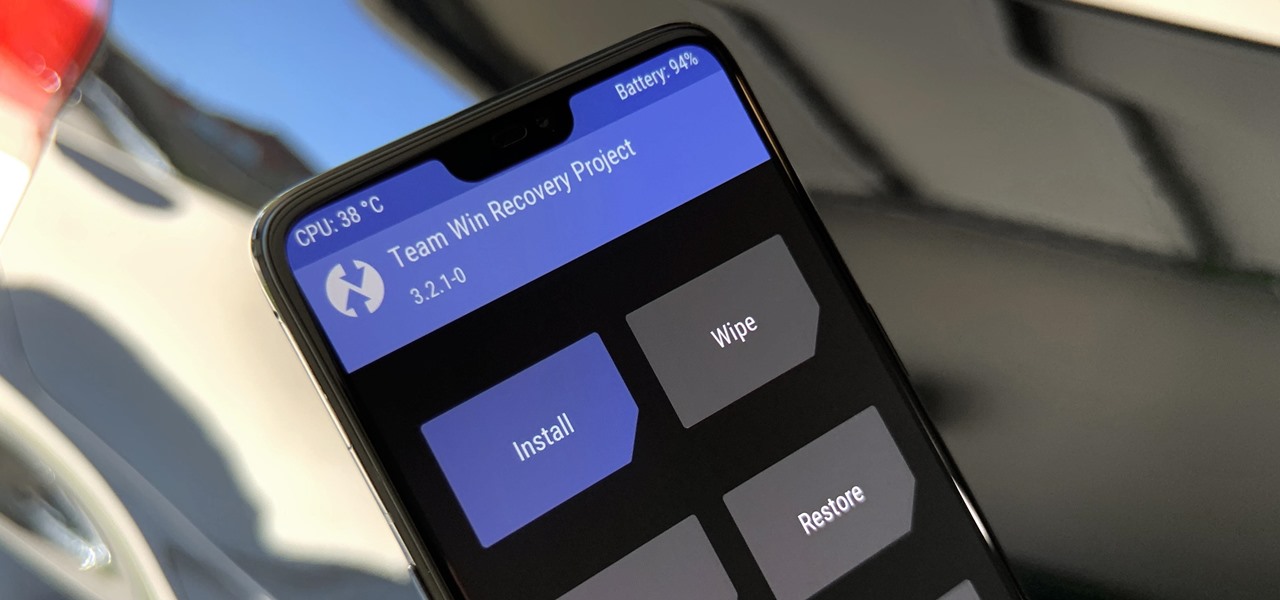
The device will begin installing the official firmware update.

Step 5. Once you select the firmware zip file, it will show a confirmation popup window. Tap on Yes button and then your phone will begin installing the official firmware update.

The confirmation window will show you a message saying that the update will be installed on your phone. Tap on Yes button to begin the installation process. Your device should automatically boot into new system version soon after the flashing process completes.

Step 6. Once the installation is complete, your device will automatically boot into the new system version.

After all the steps are completed, your device will automatically boot into the new system version. You can now use your phone as usual and enjoy the new features of Android.

To check the new system version, go to Settings > About Phone.

Conclusion

So, this is how you can install android firmware without pc. As you can see from the above steps, installing Android without PC is not a rocket science and can be done even by beginners. So, if you are planning to install any Android based operating system on your device then go ahead and try these steps once.


Previous Article
Next Article

About Author

Andrew Taylor

Related Posts

  • How to Check a Steering Pump Before Replacement

    How to Check a Steering Pump Before Replacement

    August 9, 2026
  • Why Keeping Service History Matters More Than Most Homeowners Think

    Why Keeping Service History Matters More Than Most Homeowners Think

    June 23, 2026
  • Students improving Wi Fi speed in shared Boston apartment

    How Students in Boston, MA Improve Slow Internet Speeds in Shared Housing

    May 20, 2026

Leave a Reply

Cancel reply

This site uses Akismet to reduce spam. Learn how your comment data is processed.

Recent Posts

  • How to Check a Steering Pump Before Replacement August 9, 2026
  • Gamer wearing a budget gaming headset with noise isolation in a lit room.
    How to Find Best Budget Gaming Headsets for Noise August 2, 2026
  • Why Keeping Service History Matters More Than Most Homeowners Think June 23, 2026
  • Phoenix user checking Pinterest privacy settings on mobile device
    Why Phoenix Users Worry About Pinterest Visitor Detection June 22, 2026
  • When a Field Visit Beats Remote Data Checks June 19, 2026
  • Woman wearing wireless over ear headphones while sitting next to airplane window.
    How to Choose Wireless Headphones for Commuting and Travel June 13, 2026

Categories

  • Blogging
  • Business
  • Facebook
  • Gaming
  • Google
  • Microsoft
  • Online Marketing
  • Reviews
  • Social Media
  • Tech News
  • Tips and Ideas
  • Web Design

Archives

Theme by ThemesPie | Proudly Powered by WordPress