
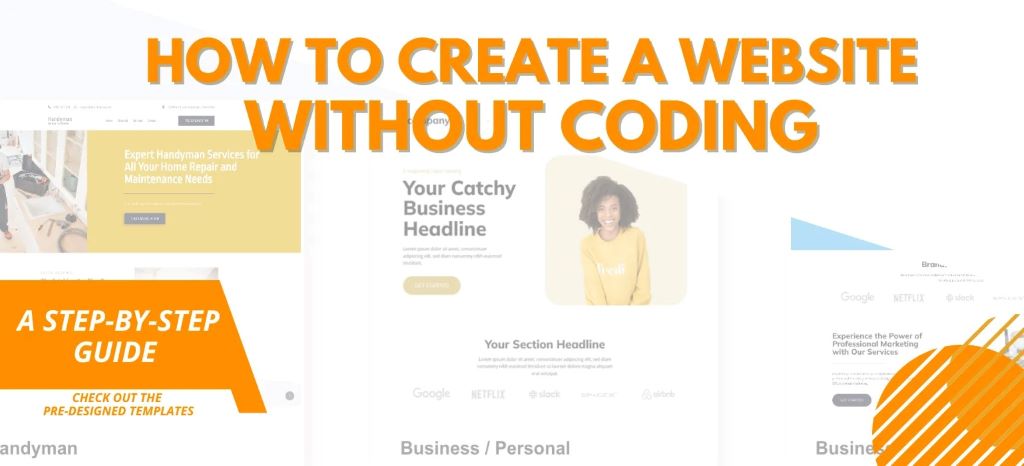
Imagine this: You have a brilliant idea for a website—a portfolio, an online store, or a blog—but the thought of writing code stops you in your tracks. You’re not alone. 60% of small business owners delay launching a website because they believe it requires coding skills. The truth? You don’t need to write a single line of code to create a professional, high-performing website.
In 2026, no code website builders have revolutionized web design. These platforms let anyone—entrepreneurs, artists, freelancers, and small business owners—build beautiful, functional websites in hours, not weeks. The best part? No technical skills required. With drag-and-drop editors, pre-designed templates, and AI-powered tools, you can launch a site that looks custom-built without touching HTML or CSS.
I’ve helped hundreds of non-technical users create websites easily using no-code tools. The key isn’t just picking the right platform—it’s understanding your goals, choosing the right features, and optimizing for performance. This guide will walk you through every step, from selecting a website builder tool to launching a site that converts visitors into customers.
Let’s turn your vision into reality—without code.
Step 1: Define Your Website’s Purpose and Goals
Before you pick a tool or template, clarify why your website exists. A site without a clear purpose is like a ship without a rudder—it might float, but it won’t take you anywhere.
1. Identify Your Website Type
Different websites serve different goals. Here’s how to match your needs with the right approach:
- Portfolio Websites: Showcase your work (e.g., photographers, designers, writers).
- Business Websites: Build credibility and generate leads (e.g., consultants, local services).
- E-Commerce Stores: Sell products online (e.g., handmade goods, digital downloads).
- Blogs: Share expertise and attract an audience (e.g., food, travel, finance).
- Event or Membership Sites: Sell tickets or subscriptions (e.g., courses, webinars).
Example: A freelance graphic designer needs a portfolio site with a gallery, testimonials, and a contact form. An online clothing store requires e-commerce features like product pages, a shopping cart, and secure checkout.
2. Define Your Target Audience
Your website should speak directly to your ideal visitors. Ask yourself:
- Who are they? (Age, location, interests)
- What problems do they have? (How can your site solve them?)
- What devices do they use? (Mobile, desktop, tablet)
Pro Tip: Create a simple audience persona. For example:
“Alex, 30, is a busy professional who wants quick, healthy meal ideas. He browses on his phone during lunch breaks and values easy-to-follow recipes.”
3. List Must-Have Features
Every website needs core functionalities. Based on your type, prioritize:
- Portfolio: High-quality images, project galleries, contact forms.
- Business: Services page, testimonials, booking calendar.
- E-Commerce: Product listings, shopping cart, payment gateways.
- Blog: Categories, search function, subscription forms.
Expert Insight: “The best no code website builders let you add features as you grow,” says Sophia Lee, a no-code advocate and founder of The No-Code Founder. “Start with the basics, then expand.”
4. Set a Realistic Budget
No-code website builders range from free to $50+/month. Decide what you’re willing to spend:
- Free plans: Limited features, subdomains (e.g., yoursite.wix.com).
- Basic plans ($5–$15/month): Custom domain, removed ads, basic e-commerce.
- Premium plans ($20–$50+/month): Advanced features, priority support, scalability.
Warning: Free plans often look unprofessional and lack essential features like custom domains.
Step 2: Choose the Right No-Code Website Builder
Not all website builder tools are created equal. Here’s a breakdown of the top platforms in 2026, their strengths, and who they’re best for.
1. Wix: Best for Drag-and-Drop Flexibility
Best for: Portfolios, small businesses, creative projects.
| Pros | Cons |
|---|---|
| 500+ designer-made templates | Can’t switch templates later |
| True drag-and-drop editor (place elements anywhere) | Slight learning curve for beginners |
| Built-in SEO tools | Free plan includes Wix ads |
| App Market for added features (e.g., bookings, forms) | E-commerce limited on lower plans |
Example: Photographers and artists love Wix for its visual freedom and gallery layouts.
Expert Review: “Wix is ideal for creatives who want full design control without code,” says David Pierce, tech journalist at The Verge.
2. Squarespace: Best for Stunning Designs
Best for: Portfolios, blogs, small e-commerce stores.
| Pros | Cons |
|---|---|
| Award-winning templates (sleek, modern) | Less flexible than Wix (grid-based editor) |
| Built-in analytics and SEO | No free plan (14-day trial only) |
| Great for portfolios and blogs | E-commerce transaction fees on lower plans |
| 24/7 customer support | Slightly pricier than competitors |
Example: Fashion brands and influencers use Squarespace for its minimalist, high-end aesthetic.
3. Shopify: Best for E-Commerce
Best for: Online stores, dropshipping, digital products.
| Pros | Cons |
|---|---|
| Optimized for sales (abandoned cart recovery, POS) | Transaction fees on lower plans (unless using Shopify Payments) |
| 100+ professional themes | Monthly cost + app fees add up |
| Secure and scalable | Not ideal for non-e-commerce sites |
| 24/7 support | Limited blogging features |
Example: Small businesses and entrepreneurs use Shopify to sell products globally without technical hassles.
Statistic: Shopify powers over 4 million online stores worldwide.
4. Webflow: Best for Advanced Design Without Code
Best for: Designers, agencies, custom business sites.
| Pros | Cons |
|---|---|
| Full design control (like coding, but visual) | Steeper learning curve |
| Clean, semantic code (great for SEO) | No free plan (only free staging site) |
| CMS for dynamic content | Pricing can get expensive for high-traffic sites |
| Hosting included | Limited e-commerce on lower plans |
Example: Freelance designers use Webflow to build custom sites for clients without writing code.
Expert Insight: “Webflow is the closest you’ll get to coding without actually coding,” says Ran Segall, founder of Flux Academy.
5. Carrd: Best for Simple, One-Page Sites
Best for: Landing pages, personal profiles, micro-sites.
| Pros | Cons |
|---|---|
| Super simple and fast | Very limited (only one page on free plan) |
| Affordable ($9–$19/year) | No blog or e-commerce |
| Mobile-responsive templates | Fewer customization options |
| Great for quick projects | Not for growing businesses |
Example: Freelancers and consultants use Carrd for quick, professional landing pages.
6. WordPress + Elementor: Best for Blogs and Content-Heavy Sites
Best for: Blogs, news sites, content marketing.
| Pros | Cons |
|---|---|
| Most flexible and scalable | Requires more setup (hosting, plugins) |
| 50,000+ plugins for any feature | Can get bloated if not optimized |
| Best for SEO | Security and updates are your responsibility |
| Own your data (unlike closed platforms) | Slightly steeper learning curve |
Example: Bloggers and media companies use WordPress for its SEO advantages and customization.
Statistic: WordPress powers 43% of all websites on the internet.
Step 3: Pick a Template and Customize Your Design
Once you’ve chosen a no code website builder, it’s time to bring your vision to life. Here’s how to design a site that wows visitors without hiring a developer.
1. Select a Template That Fits Your Brand
Most builders offer hundreds of templates categorized by industry. Choose one that:
- Matches your niche (e.g., “Restaurant” for a café, “Portfolio” for a designer).
- Has a layout you love (you can customize colors and fonts later).
- Is mobile-responsive (test on your phone before committing).
Pro Tip: Look for templates with built-in features you need (e.g., booking forms, product grids).
2. Customize Colors, Fonts, and Images
Your site should reflect your brand’s personality. Use these tips:
- Colors: Stick to 2–3 brand colors for consistency. Use a color palette generator like Coolors.
- Fonts: Pair a heading font (e.g., Playfair Display) with a body font (e.g., Open Sans). Avoid more than two fonts.
- Images: Use high-quality, relevant photos. Source free images from Unsplash or Pexels.
Example: A yoga studio’s website might use calm blues and greens with a serif font for headings and a sans-serif for body text.
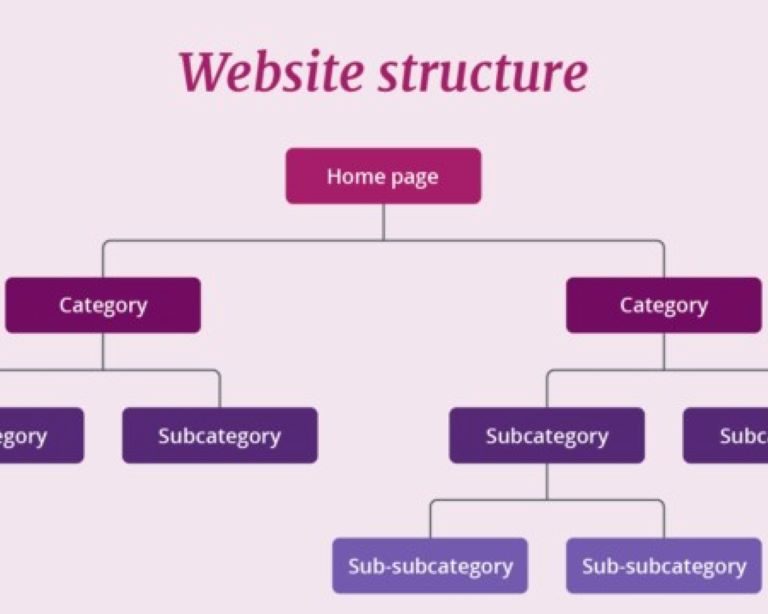
3. Organize Your Navigation for Easy Browsing
A clear menu keeps visitors engaged. Follow these best practices:
- Limit menu items to 5–7 (too many overwhelm users).
- Use descriptive labels (e.g., “Our Services” instead of “What We Do”).
- Include a CTA (e.g., “Book Now” or “Shop Products”).
Expert Tip: “Your most important page should be one click away from the homepage,” says Nielsen Norman Group, a leader in UX research.
4. Add Essential Pages
Every website needs these core pages (adjust based on your type):
- Homepage: Clear headline, hero image, CTA.
- About Us: Your story, mission, team photos.
- Services/Products: Detailed descriptions, pricing, images.
- Blog/Resources: Valuable content to attract SEO traffic.
- Contact: Form, email, phone, social links, map (if local).
Example: A consulting business might add a “Case Studies” page to showcase past successes.
Step 4: Optimize for Performance and SEO
A beautiful website is useless if no one can find it or it loads too slowly. Here’s how to boost speed, rankings, and conversions without coding.
1. Speed Up Your Site
Slow sites lose 40% of visitors. Improve speed with:
- Compressed images (use TinyPNG or your builder’s built-in optimizer).
- Lazy loading (images load as users scroll).
- Minimal plugins/apps (each adds load time).
Statistic: Pages that load in 2 seconds have a 15% higher conversion rate.
2. Optimize for Mobile
63% of web traffic comes from mobile. Ensure your site:
- Uses a responsive template (automatically adjusts to screens).
- Has large, tappable buttons (no tiny links).
- Loads fast on 4G (test with Google’s Mobile-Friendly Test).
Pro Tip: Preview your site on multiple devices before launching.
3. Improve SEO with Built-In Tools
Most no code website builders include SEO features. Use them to:
- Edit meta titles and descriptions (include keywords).
- Add alt text to images (helps with accessibility and SEO).
- Create a sitemap (submitted to Google via Search Console).
Example: In Wix, go to SEO Tools > SEO Setup Checklist for step-by-step guidance.
4. Set Up Google Analytics and Search Console
Track your traffic and performance with:
- Google Analytics: Shows visitor behavior, traffic sources, and conversions.
- Google Search Console: Monitors search rankings, clicks, and errors.
Action Step: Add your site to both before launching.
Step 5: Launch Your Website and Drive Traffic
Your site is ready—now it’s time to share it with the world. Follow these steps to launch successfully and attract visitors.
1. Test Everything Before Going Live
Check for:
- Broken links (use a tool like Dead Link Checker).
- Mobile responsiveness (test on iPhone and Android).
- Form submissions (does your contact form work?).
- Payment processing (if e-commerce, do a test purchase).
Expert Insight: “Always test on a staging site first,” says Darrel Wilson, CEO of ConvertKit. “Fix errors before they affect real visitors.”
2. Connect a Custom Domain
A custom domain (e.g., yourbusiness.com) looks more professional than a free subdomain (e.g., yourbusiness.wixsite.com). Buy one from:
- Namecheap ($9–$15/year).
- Google Domains ($12/year).
- Your hosting provider (often includes a free domain for the first year).
Pro Tip: Keep your domain short, brandable, and easy to spell.
3. Promote Your Website
Launching is just the beginning. Drive traffic with:
- Social media: Share on Instagram, LinkedIn, Facebook.
- Email marketing: Announce to your newsletter subscribers.
- SEO: Publish blog posts targeting keywords.
- Paid ads: Run Facebook or Google Ads to attract visitors.
Example: A new online store might offer a 10% discount for first-time buyers to encourage shares.
4. Collect Feedback and Iterate
Ask friends, customers, or followers for feedback on:
- Design (Is it visually appealing?).
- Usability (Is it easy to navigate?).
- Content (Is the messaging clear?).
Use tools like Hotjar to see how users interact with your site.
Common Mistakes to Avoid When Creating a Website Without Coding
1. Choosing the Wrong Builder for Your Needs
A portfolio site on Shopify is overkill. A blog on Carrd is too limited. Match the tool to your goals.
2. Overcomplicating the Design
Too many colors, fonts, or animations distract visitors. Stick to a clean, consistent style.
3. Skipping SEO Basics
Without SEO, your site won’t rank on Google. Always optimize titles, descriptions, and images.
4. Ignoring Mobile Users
63% of traffic is mobile. A non-responsive site loses half your audience.
5. Not Backing Up Your Site
30% of websites crash or get hacked. Use automatic backups (most builders include this).
Related Topics:
-
How to Design Navigation Systems Inspired by Spider Web Design
-
How to Develop an Optimized E-commerce Website for Voice Search
7 FAQs About Creating a Website Without Coding
1. Can I really create a professional website without coding?
Absolutely! No code website builders like Wix, Squarespace, and Webflow let you drag and drop elements to build a site that looks custom-designed.
2. Which is the easiest website builder for beginners?
Wix and Squarespace are the most user-friendly. Both offer intuitive editors and pre-made templates.
3. How much does it cost to create a website without coding?
- Free: Limited features, subdomain (e.g., yoursite.wixsite.com).
- Basic: $5–$15/month (custom domain, no ads).
- Premium: $20–$50+/month (e-commerce, advanced features).
4. Can I sell products on a no-code website?
Yes! Shopify, Wix, and Squarespace all support e-commerce. Shopify is the best for online stores, while Wix and Squarespace work for smaller shops.
5. How do I get a custom domain for my website?
Buy one from Namecheap, Google Domains, or your hosting provider. Costs $9–$15/year.
6. Can I switch website builders later?
Yes, but it’s easier to stick with one. Migrating content can be time-consuming. If you must switch, use export tools or hire a pro.
7. How do I make my website load faster?
- Compress images (use TinyPNG).
- Enable lazy loading.
- Limit apps/plugins.
- Choose a fast host (e.g., SiteGround, Kinsta).
Conclusion: Your No-Code Website Is Just a Few Clicks Away
Creating a stunning, functional website without coding is easier than ever in 2026. With the right no code website builder, a clear plan, and a focus on design and performance, you can launch a site that attracts visitors, builds credibility, and grows your business.
Here’s your action plan to get started today:
- Define your website’s purpose and audience.
- Choose the best website builder tool for your needs.
- Pick a template and customize it to match your brand.
- Optimize for speed, mobile, and SEO.
- Launch and promote your site to the world.
Remember: Your website is your digital storefront. Make it visually appealing, easy to navigate, and valuable to visitors.
Ready to build your dream website? Pick a website builder from this guide and start your free trial today. Once you’ve launched, share your site link in the comments—I’d love to see what you’ve created!
What’s the biggest challenge you’ve faced with website builders? Let’s solve it together!
Featured Image Source

+ There are no comments
Add yours